Virtual Network Computing

In today's changing world, an increasing number of UNIX system administrators are finding they need to support Windows NT servers in their work environments. Whether Exchange or application servers, NT servers are starting to creep into what were once UNIX-only shops. The responsibility of managing an NT server can be discouraging to any UNIX guru. UNIX users are used to the flexibility of the X Window System—the ability to run applications easily on any UNIX server and have remote X applications display on the local desktop. It is much more difficult to manage NT servers remotely and the administrator usually needs to be at the system's console to run most NT applications.
Several commercial products allow MS Windows applications to be controlled remotely from an X desktop. In addition, there are several commercial X servers for MS Windows which allow the opposite. However, until recently an equivalent free software package was not available.
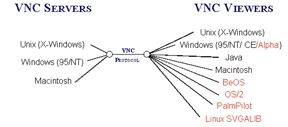
Researchers at the Olivetti & Oracle Research Laboratory (ORL) have released the VNC software package under the GNU general public license. VNC, which stands for Virtual Network Computing, is a client/server-based, stateless, platform-independent protocol developed at ORL. This protocol implements a remote display system in which a user is allowed to control a computing “desktop” managed by a VNC server, by connecting to it from a VNC client application called a “viewer”. VNC servers currently exist for Windows 95/NT, Macintosh and UNIX. A variety of VNC clients exist as well for a number of operating systems. Figure 1 shows all the connections currently possible with the VNC protocol. Many of the VNC viewers are ported by users on the Net. ORL supplies precompiled server and client binaries for Windows 95/NT, Macintosh, Linux, Digital UNIX and Solaris. In addition, ORL provides a Windows CE client.
Figure 1. VNC Protocol Connections
In this article, I will discuss how to set up the VNC software, allowing you to control a Windows desktop from Linux running the X Window System (probably the most common use of VNC for Linux users).
ORL provides an x86 Linux 2.0 binary that works great with Red Hat 5.1 and can be retrieved from their download page (see Resources). Once you have the package, unarchive it using gunzip and tar. The binary distribution provides no installation script, but for our purposes we simply need to have root copy the viewer binary, vncviewer, into a suitable location accessible by others, such as /usr/local/bin.
ORL provides a precompiled Windows 95/NT binary supplied as a package that can also be downloaded from their download page. The package installs like most other Windows software packages, i.e., using InstallShield. The VNC server (WinVNC) can be installed as a regular application (started/stopped by the user currently logged on to the console) or as an NT service (starts automatically when NT boots; does not exit when user logs out). Installation as a service is a new feature in recent versions of WinVNC. The latest version at the time of writing, is 3.3.2R5. VNC is actively developed, so a newer version of the software will most likely be ready to download by the time you read this. I recommend installing WinVNC as a service so that the VNC server is always running and you do not have to remain logged in on the Windows console at all times.
To install WinVNC as a service, simply install the package as you would normally install any other Windows application, then type in a command window:
cd
WinVNC.exe -install
WinVNC.exe -run # or reboot NT to have the<\n>
                # service start automatically
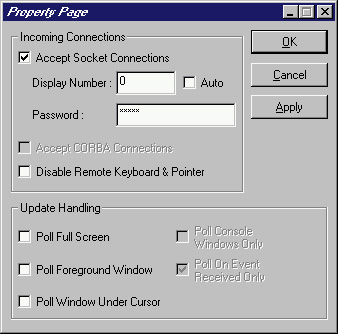
The Linux VNC viewer requires no configuration to use. However, the Windows VNC server does require some minor configuration. To bring up the configuration window, either right-click on the WinVNC icon in the Windows NT/95 system tray and select Properties, or open a DOS command window and type:
cd
WinVNC.exe -settings
Figure 2. Windows VNC Configuration Window
In the configuration window, shown in Figure 2, the following options can be set:
Make sure Accept Socket Connections is selected. If this option is not checked, all incoming connections will be disabled.
The Display Number can be left at 0. This value is specified when using a VNC viewer to connect to this server.
Set a Password to secure access to this VNC desktop (a good idea). When connecting to this VNC server via a viewer, you will be prompted for the same password.
If Disable Remote Keyboard & Pointer is selected, all incoming viewer connections will be able to see the desktop but will not be able to move the mouse or type anything (a read-only connection).
In the Update Handling section, various options can be turned on/off to control how the VNC server sends “desktop changes” to a VNC viewer. See http://www.orl.co.uk/vnc/winvnc.html for in-depth explanations on the pros and cons of each option.
Press the Ok or Apply button to apply your configuration changes.
Once you have WinVNC running on a Windows server, try connecting to it from your Linux desktop by typing (within X) the following command, followed by the password you gave when configuring WinVNC (if any):
> vncviewer
vncviewer: VNC server supports protocol version 3.3 (viewer 3.3)
Password:
vncviewer: VNC authentication succeeded
vncviewer: Desktop name "boxster"
vncviewer: Connected to VNC server, using protocol version 3.3
vncviewer: VNC server default format:
16 bits per pixel.
Least significant byte first in each pixel.
True color: max red 31 green 63 blue 31
   shift red 11 green 5 blue 0
Using default colormap and translating to BGR233
Creating window depth 8, visualid 0x22 colormap 0x21
If you typed the password correctly, several lines of information will appear and a new large window will pop up showing the entire remote Windows desktop. When you are finished using the VNC viewer, simply close the viewer's window to close the connection. The remote Windows desktop will be left in the last state the viewer left it in.
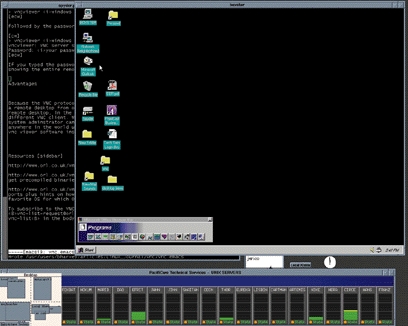
Figure 3 shows a sample Linux desktop with a newly opened VNC viewer connection “viewing” a Windows NT desktop.
Figure 3. Linux Desktop Viewing Windows NT
A nice feature available in recent VNC releases is the ability to send the infamous ctrl-alt-del key sequence to the Windows desktop shown in a VNC viewer. This feature has distinct advantages when the VNC server is installed as a service:
If the VNC server is installed as a service under Windows NT, you don't need to have a user logged on all the time with the VNC server running as a Windows application. When it comes time to use that server remotely, simply connect to it with a VNC viewer, press ctrl-alt-del to get the NT login Window, and log on as you normally would to the NT box.
If you need to stay logged on to the NT server but want to exit your local X session, you can type ctrl-alt-del to get the “Windows NT Security” pop-up window, click on “Lock Workstation” to lock the console, close the VNC viewer connection, then exit your X session. You will still remain logged on to the NT server; its screen is now locked.
The VNC protocol has several advantages. The main one is that it is stateless. A user can close a connection to a remote desktop from one VNC viewer and later reconnect to that same remote desktop from the same or different VNC viewer, and it will be in the same state.
When using the Java VNC viewer, a system administrator can control a Windows 95/NT, Macintosh, or UNIX desktop from anywhere in the world using a Java-enabled browser. The VNC server can be configured so that all incoming viewer connections will be able to see the desktop but will not be able to move the mouse or type anything (a read-only connection). This option comes in handy in a teaching environment, where each student in a class connects to the instructor's “desktop” and watches a demonstration on his own computer rather than on an overhead connected to the instructor's computer.
At work, I have an Alpha running Digital UNIX and a P133 running Windows NT 4.0. Although I am strictly a UNIX systems administrator, my company's e-mail standard is based on Microsoft Exchange. Therefore, I am required to have a Windows desktop on my desk in order to read Exchange e-mail. However, at home I run only Linux. I was looking for a way to read my Exchange e-mail from home. After reading about VNC, I knew I had found what I was looking for.
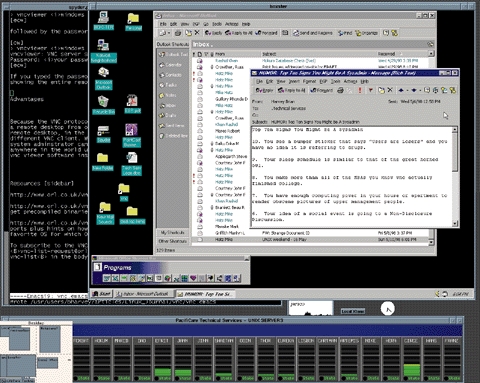
I use the Linux VNC viewer at home to connect to the Windows NT box on my desk at work over a PPP connection. Figure 4 shows me reading my Exchange e-mail with such a setup. While VNC performance over a PPP line isn't spectacular, it is very usable and solves my problem of not being able to read Exchange e-mail from home.