
Barnes and Noble's Nook
I'd never given e-readers much thought before. I've been reading e-texts on portable computers since I was in college in 1991 (I started on an HP 95LX Palmtop reading Project Gutenberg texts), so spending additional money on a dedicated device didn't make much sense to me. After all, I'd gone from the HP Palmtop PCs (95, 100 and 200LXs), to a Palm V, to a Palm LifeDrive, to a BlackBerry Curve, and I ended up using Stanza on the iPhone. I'm a fairly voracious reader—I read a book every week or ten days—so the idea of having to carry “yet another device” to get my literary fix just didn't sound like a great plan. As a result, I automatically discounted the Kindle, Nook and other e-readers due to their lack of utility, until a friend suggested I give the Nook a closer look. I'm glad I did; I was rather surprised by what I found.
The Barnes & Noble Nook is an e-reader with a monochrome electronic ink (E Ink) screen, much like its primary competition, the Amazon Kindle. However, the Nook has one major distinguishing feature at first glance: a smaller, color, touchscreen below the primary E Ink screen. This little touchscreen serves as navigation device, virtual keyboard and optional page-flipping mechanism. There also are four hardware buttons on either side of the screen dedicated to page forward/reverse, which makes the Nook friendly for left-handed users. The Nook comes in two hardware models: one with Wi-Fi and 3G, and one with Wi-Fi only. It weighs about 12 ounces, and it's approximately 7.7" long, 5" wide and .5" thick. It reminds me of a Moleskine notebook in dimension, and I actually picked up a cover for the Nook that makes it look like one. The primary E Ink display is 600x800 “pixels” and measures 6" diagonally, while the secondary color touchscreen is 480x144 and measures 3.5" diagonally. Battery life on the Nook is impressive, running close to ten days of average use time if the wireless is turned off (two days with wireless on). This is due in large part to the E Ink screen, which uses power only when changing pixels on the display—it costs nothing to keep the display “lit”.
The 3G access (on 3G-capable Nooks) is locked to the Barnes & Noble on-line store only. You can't use it to surf the Web or use other on-line applications. The 3G is used only for buying books and getting content from Barnes & Noble's “The Daily” application, and it works only in the country in which you purchase the Nook (Barnes & Noble isn't going to pick up the tab for international roaming).
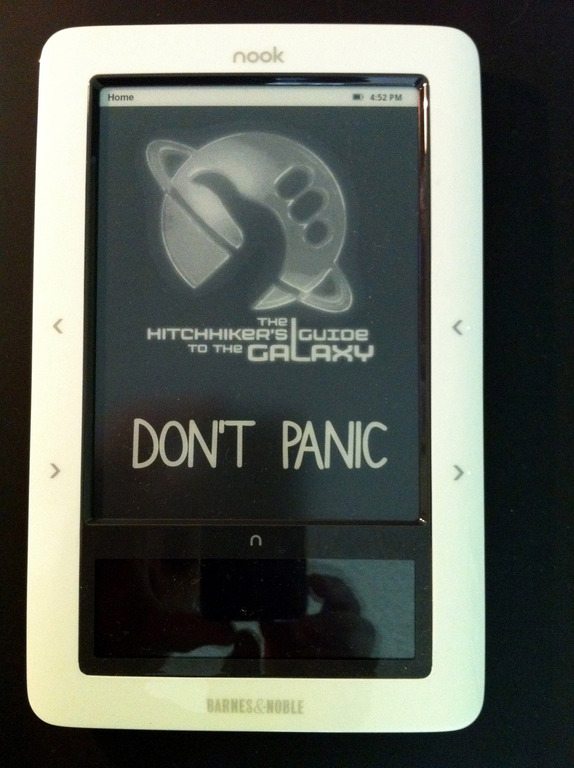
Figure 1. Barnes & Noble's Nook
Other technical specifications of the Nook are:
Samsung S3C6410 ARM CPU (seems to be clocked at 533MHz).
256MB of RAM.
Internal 2GB Flash storage (it's actually a Sandisk MicroSD card, but it's not user-accessible).
CyberTAN 802.11b/g Wi-Fi chipset.
Sierra Wireless MC8777v 3G modem (on 3G-capable models only, locked to access only Barnes & Noble's e-store).
User-accessible MicroSD card slot under back cover (for add-on data storage).
MicroUSB port (for side-loading content from a PC and charging).
Headphone jack.
Speakers.
Android 1.5 “Cupcake” operating environment.
Linux 2.6.27 kernel.
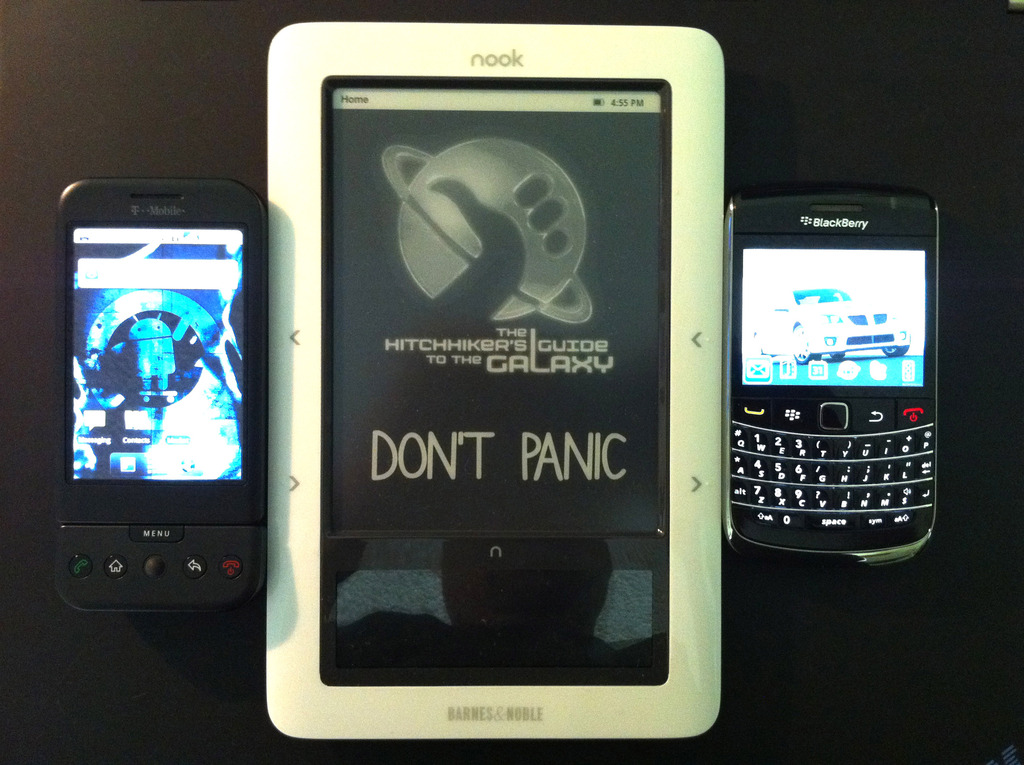
Figure 2. The Nook Next to a T-Mobile G1 and BlackBerry Bold for Size Comparison
The Nook can read several different media types, including:
ePub e-books (with and without DRM).
Mobi/e-reader e-books (with and without DRM).
MP3 audio files (can be played in the background while reading).
JPEG, GIF, PNG and BMP image types.
When you first fire up the Nook after creating your Barnes & Noble store account and signing in (a mandatory process), you're greeted with wallpaper on the E Ink screen and several icons on the touchscreen (Figure 3). Each icon represents a function of the Nook. The Daily is content that Barnes & Noble updates each day. My Library is where you go to select content you already own (from the Barnes & Noble store or loaded from a PC). Shop takes you to the Barnes & Noble on-line store. Reading Now opens your current book, and Games gives you Sudoku and Chess games. There also is a Web browser included in the Nook (more on that later). The little n button between the E Ink screen and the touchscreen serves as a quick shortcut to take you back to this main menu.
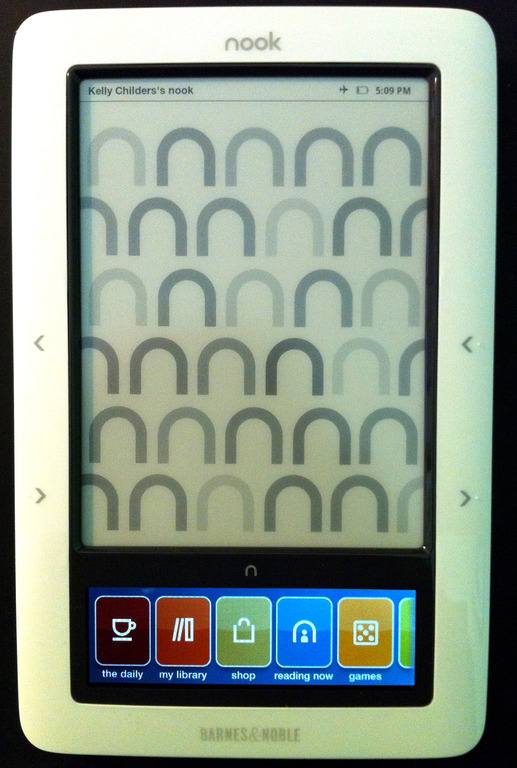
Figure 3. The Nook's Main Menu
The Nook provides a very good reading experience, although it's not without a bump or two in spots. The E Ink screen is simply lovely for reading text. I was very skeptical at first about E Ink technology, due to the lack of backlight, slow response time and monochrome-only display. After using it, however, it's simply perfect for an e-reader. It's easy to read in reasonable lighting, and the response time is an issue for e-reading only when flipping pages, where it shows up as a black flash each time the page-forward button is pushed. The flash when flipping pages does take a little getting used to, but it's not terribly bad, and it's a decent trade-off for the excellent readability and extremely low-power consumption of the screen. The contrast of the screen improves in better lighting. In sunlight, my wife and I actually prefer it to a printed page. In Figure 4 you can see what the experience is like while reading John Scalzi's book The Android's Dream (a hysterical book, by the way). The Nook's size and weight are just about perfect, and it feels good in your hand as you read. Kudos to Barnes & Noble for putting duplicate page-forward/-reverse buttons on both sides of the screen, so readers can switch hands without hassle. It has features that are expected to be in an e-reader, like text highlighting, bookmarking and the ability to look up a word in an onboard dictionary without leaving the book.
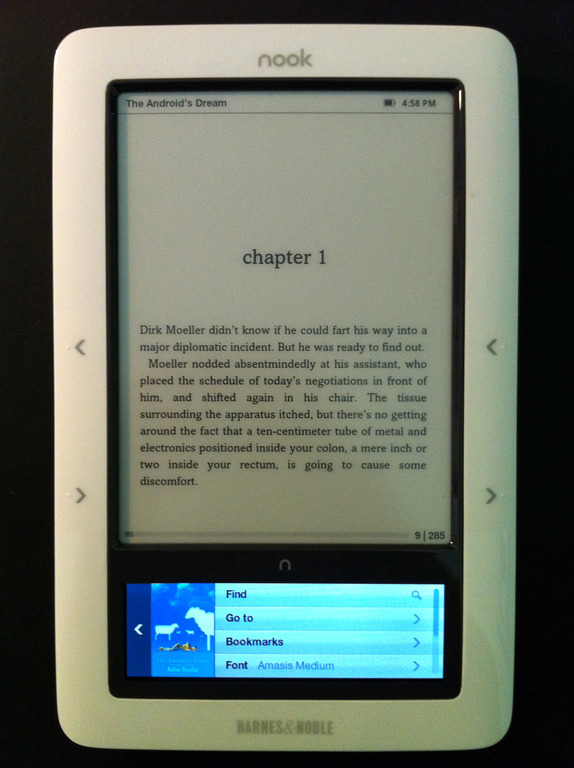
Figure 4. Reading The Android's Dream
The Nook's on-line store also is easy to use. Simply push the Shop icon from the main menu, and you're connected to the Barnes & Noble on-line store—instantly, via 3G if you're on a 3G-capable Nook; otherwise, the Nook needs to be associated with a Wi-Fi access point. You navigate the store using the lower touchscreen, and the search results and books are displayed on the E Ink screen. I've been using touchscreen devices for a while, and I kept wanting to touch the E Ink screen to click on things at first, but that instinct didn't take long to overcome. Once you select a book, either via searching or browsing, buying it is as simple as clicking Buy Now on the touchscreen, and it's sent wirelessly to your Nook. An advantage of this is if there's ever an issue with your Nook and you need to replace it, once your replacement Nook is re-associated with your Barnes & Noble account, all your content automatically will be downloaded to the new Nook. Another tidbit about the Nook store is occasionally there will be offers for freebies if you take your Nook to a brick-and-mortar Barnes & Noble store. I've seen offers for free coffee, and Figure 5 shows an offer for free chocolate. I like free chocolate.
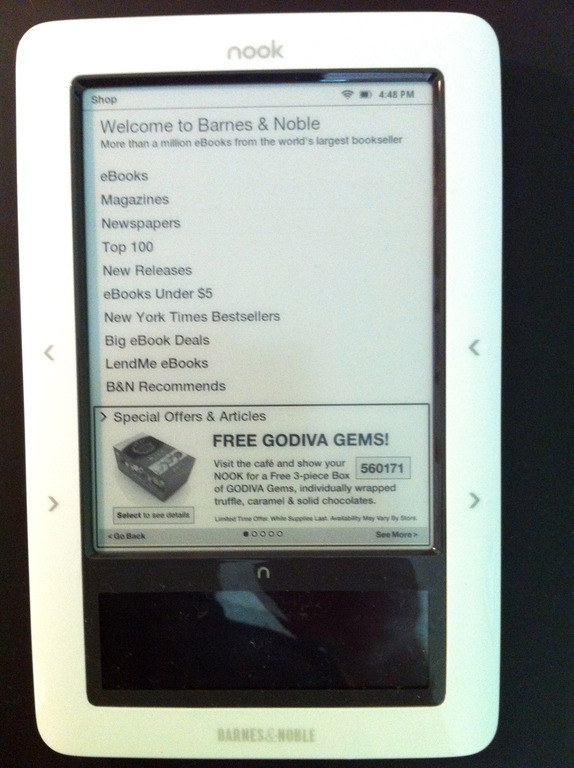
Figure 5. The Barnes & Noble Nook Store
Using the Nook as a Web browser, unfortunately, represents an exercise in frustration. The processor is clocked just a little bit too slow to make for a decent browser. The E Ink screen's response time is abysmal when trying to select something, but the worst part about the experience is the split screen. You have to navigate the site using a small “window” of the site as seen through the touchscreen, but you can see the whole site on the E Ink screen (Figure 6). It gives you a schizophrenic feeling when trying to navigate a Web page. Sadly, it's just a bad experience. I think the Barnes & Noble folks tossed a Web browser in the unit because they could, and it gave them feature parity with the Amazon Kindle. And, I'm not sure there is a way to improve the experience on the current hardware.
The two games that ship with the unit are adequate, although if I'm going to play a game, I'll reach for my iPhone, laptop or Nintendo DS before I pick up the Nook. Having the ability to play an MP3 file and listen to it on speakers or headphones while reading is nice, but it's something I'll rarely use since I have other devices that play that kind of media better.
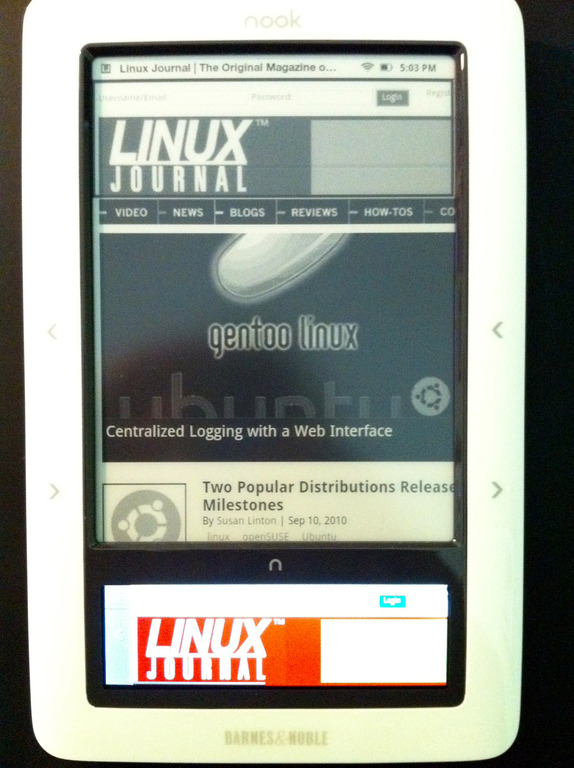
Figure 6. Linux Journal's Web Site, as Seen on the Nook
Overall, I like the Nook. Since I got my Nook, I've found myself “unplugging” from the computer and reading more. I like my Nook so much that the day after I got mine, I ran back to Barnes & Noble and bought my wife a Wi-Fi Nook. If I had to make the purchase again, I'd have gotten a Wi-Fi-only Nook myself, as I've used the 3G to purchase a book exactly once. The Nook's shortcomings aren't showstoppers to owning one, unless you need to rely on its Web browsing ability or need the fastest in screen refresh—in which case you probably shouldn't get any E Ink e-reader. It's hard to go wrong with the Wi-Fi Nook at the current $149 price point, and although the extra $50 for the 3G probably won't bankrupt anyone, it's more gimmicky than functional, as it's not very hard to find Wi-Fi around for downloading books. At any rate, if you're in the market for a dedicated e-reader, check out the Nook.
Managing Your Content with Calibre
Calibre is a cross-platform open-source program that's designed to manage electronic books and other texts. It'll convert between e-reader formats as well as PC formats, like PDF and HTML, and it will download cover art and other e-book attributes automatically from the Internet. It's really easy to use, and it syncs with the Nook flawlessly. If you have a lot of pre-existing content in other formats you want to put on your Nook, Calibre's the only way to go.
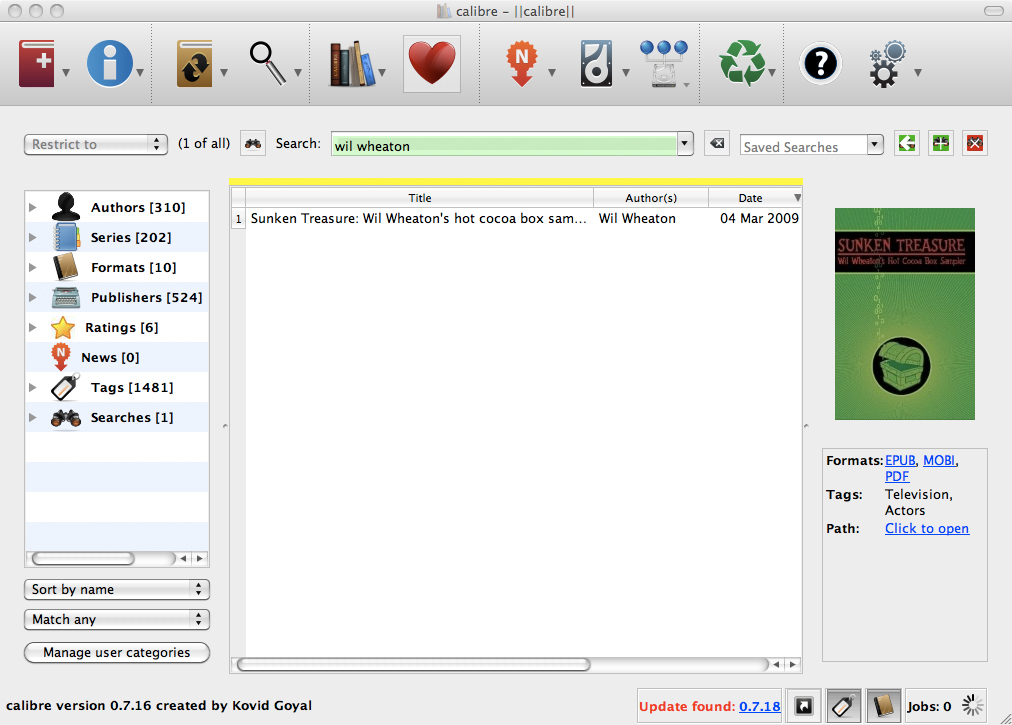
Calibre, an E-book Management Program
Softrooting the Nook
The Nook is an Android device, and as such, is capable of being “rooted”, giving you full access to the hardware via the removal of software constraints. The softroot for the Nook is fairly easy to do, and you can do simply by downloading and installing a couple firmware bundles. After your Nook's been softrooted, you'll have the ability to change the launcher's main menu icons, as well as install other Android apps like Pandora. There are a couple Nook-specific applications as well: Trook (a way to download books you already own via Wi-Fi outside of the Barnes & Noble store) and Twook (a Twitter client with many of the same faults as the Web browser app). Note that at the time of this writing, new Nooks with serial numbers starting in the 1003 series are not compatible with the current softroot. Take care and check with the NookDevs site (see Resources) before attempting a softroot. If in doubt, don't do it!
Resources
Barnes & Noble Nook Home Page: www.nook.com
NookDevs Home Page: nookdevs.com
Calibre Home Page: calibre-ebook.com
Bill Childers is an IT Manager in Silicon Valley, where he lives with his wife and two children. He enjoys Linux far too much, and probably should get more sun from time to time. In his spare time, he does work with the Gilroy Garlic Festival, but he does not smell like garlic.
