
Social from the Start
From the beginning of the evolution of Linux on the desktop, one of the many benefits of the open-source methodology is that we often can be reactive to user needs much quicker than our proprietary counterparts. The reason is simple and gets to the heart of open source itself; with more people inspired, motivated and equipped to solve problems, problems are solved more quickly, and everyone in the community benefits.
Just over a year ago in Spain at the Ubuntu Developer Summit, Mark Shuttleworth, founder of the Ubuntu Project, started coining the term Social from the Start. His idea was also simple: to build social media and social networking into the core of the Ubuntu desktop. As the leader of the Ayatana Project (which has been driving desktop innovation in Ubuntu), part of his vision is that access to social tools should be simple, elegant and integrated. We have seen the true fruits of these efforts shipped in the Ubuntu 10.04 Lucid Lynx release.
In this article, I peel back the covers and explore what Social from the Start currently includes in the Ubuntu 10.04 Lucid Lynx desktop and the opportunities we have open to us in the future.
When the Ayatana Project first was announced, its focus clearly was articulated as improving the perception and presentation of information in the desktop, hence the name of the project—the Buddhist term for a “sense base” or “sense sphere”. The first innovation along this mission was the new notification bubbles that have shipped with Ubuntu for a few releases now. The next major change was the messaging menu, as shown in Figure 1.
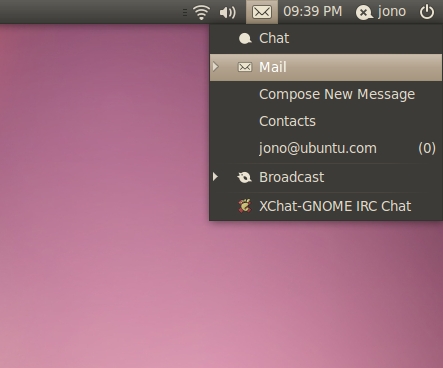
Figure 1. The Messaging Menu's Notification Indicators
The messaging menu provides a single place in which new information is made available to you. In a default Ubuntu installation, e-mail in Evolution, chat messages in Empathy and tweets in Gwibber are all made available in the messaging menu. In the past year, we also have seen numerous other applications make use of the messaging, such as the XChat-GNOME IRC client and Zimbra. The messaging menu neatly merges all of these different information flows together into one common place on your panel, only ever a click away.
By default, the messaging menu includes three primary types of content:
Chat: interactive text-based real-time discussions with friends and colleagues.
Mail: e-mail messages.
Broadcast: social-networking broadcast messages, such as Twitter.
A key component at the core of the social-networking support in Ubuntu is a simple little tool called Gwibber. Gwibber is a window in which to view a world filled with different social-networking Web sites and streams. Gwibber provides support for Facebook, Twitter, identi.ca, Flickr, StatusNet, FriendFeed, Digg, Qaiku and more networks are added with each release.
To use Gwibber, you first need to have an account on at least one social-networking service it supports. As an example, I have a Twitter feed at www.twitter.com/jonobacon, and I can use Gwibber to send and receive content without ever having to use the normal Twitter Web site. Gwibber's major benefit is that it brings all of these different social-networking services together into one window. Continuing my example, in addition to Twitter, I also have a Facebook page (www.facebook.com/jonobacon) and an identi.ca account (identi.ca/jonobacon). Ideally, not only do I want to read all of these feeds in one place, but also when I post a message, I want it to appear on all three at the same time. This is simple with Gwibber.
Let's first set up your accounts for the system. To do this, click your user name in the desktop panel (in the top-right part of the screen), and in the menu, select Broadcast Accounts.... The window shown in Figure 2 appears.
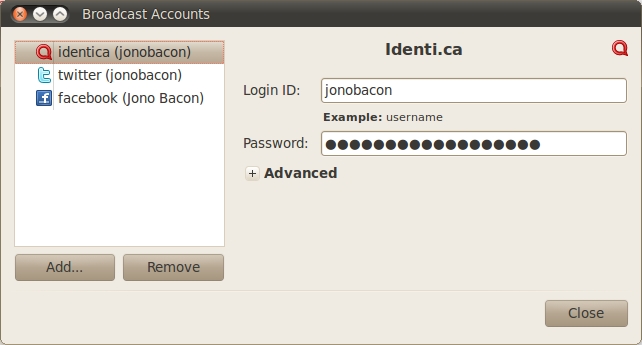
Figure 2. Setting up broadcasts accounts is simple in Gwibber.
Click the Add... button, select the type of account and then click the Add button next to it. Finally, enter the login credentials for the account, and click the Add button to complete. Repeat this process for each of the different accounts you want Gwibber to talk to.
Now, let's see your accounts in action. Click the messaging menu (the little envelope in the panel), and click Broadcast to load Gwibber. A window that looks similar to Figure 3 appears.
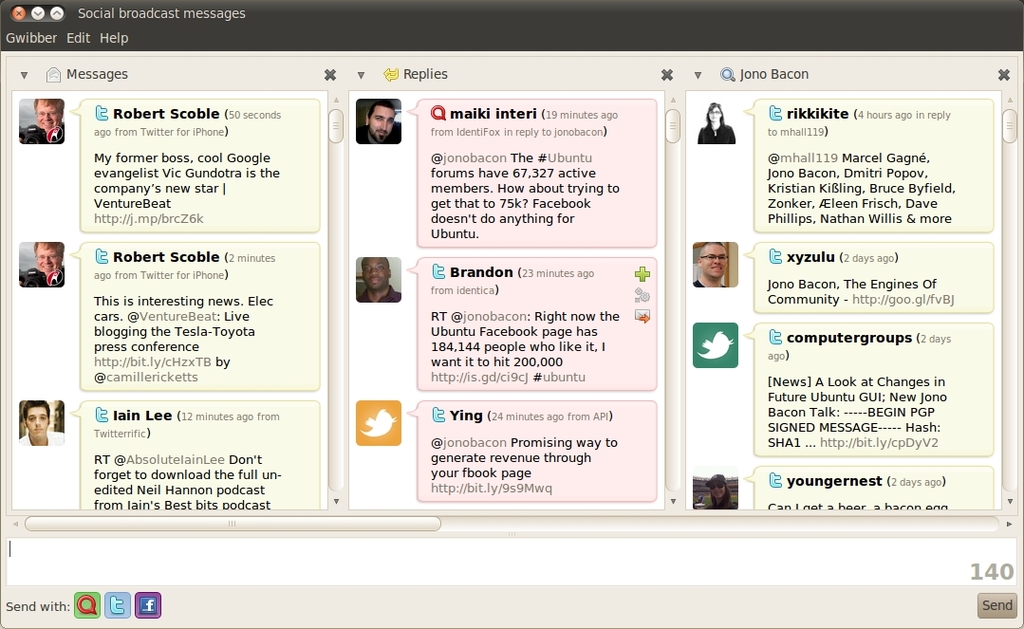
Figure 3. Gwibber provides a stream of social-networking messages.
Gwibber is split into a series of panes called streams. The stream on the far left is the Messages stream. It displays all the messages of the people you follow across the accounts that you set up in Gwibber. It merges all of these different messages into one place and organizes them chronologically. You can see which network a message is from by looking at the icon next to the name of the person in the message. Gwibber repeatedly updates all the different streams to keep you up to date with new content.
To the right of the Messages stream is the Replies stream. These are all the messages directed at you (for example, in my Gwibber, all messages with @jonobacon appear in this stream). Messages that come into this stream not only appear in Gwibber but also a notification bubble appears indicating a message has arrived that you may want to reply to.
To reply, hover your mouse over the message in Gwibber, and click the small envelope. The recipient's user name now appears in the text entry at the bottom of the window. Type your message, and Gwibber indicates how many letters you have left within the 140-character limit. With the character limit so precious, Gwibber also handily shortens Web addresses you paste into it. When you are ready, press Enter or click the Send button to send your message. Your message appears in your Messages stream to show it was posted.
When sending a new message, under the message entry text box is an icon next to Send with for each of the different accounts you configured in Gwibber. Click these icons to select or deselect to which networks your message will go. By default, your message will go to all networks.
One of Gwibber's most useful features is its support for multiple streams. With it, you can provide quick access to different themes of messages you want to see. This most typically includes searches for all messages, including particular search terms. It's incredibly handy if you want to see what the microblogging world is saying about something you care about, such as your name, product, project or service.
Setting up a new stream is simple. In Gwibber, click Gwibber→New Stream, and a new pane appears to the right of your existing streams (you may need to move the scroll bar to see the new view). In the new stream to the left is a down arrow, click it and a window pops up where you can select what will go in the stream. At the top are general categories of information common to all networks, such as Messages, Replies and Images. Underneath them are each of the different networks and the different types of information specific to those networks. This makes it simple to have a stream that shows only your Twitter replies, for example.
At the bottom of the list of content types is a Search option. Clicking takes you back to the main Gwibber window, and a text box appears where you can enter a search term. Add something and click the Search button, and a new stream to the right appears showing all messages across your networks with that search in them.
One of the key enhancements that Ubuntu 10.04 Lucid Lynx brought was the ability to tweet directly from your desktop without even needing to access the Gwibber window. With your broadcast accounts all set up, you can tweet by clicking your user name (you also can press Super-S) on the panel and typing your tweet into the text entry box in the menu (Figure 4). This makes tweeting from Ubuntu a snap; one click, and your thoughts are broadcast instantly!
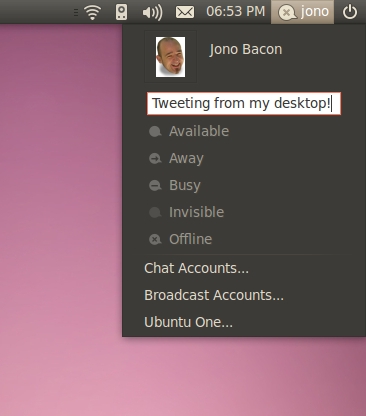
Figure 4. Send tweets right from your desktop!
Another key component in building social features into the Ubuntu desktop is Empathy—a multiprotocol, extensible and powerful chat client. With Empathy, you can chat to your friends across a range of different networks all in the same place. Empathy supports Facebook Chat, Google Talk, Jabber, AIM, gadugadu, GroupWise, ICQ, IRC, MSN, mxit, MySpace, qq, sametime, silc, SIP, Yahoo!, Yahoo! Japan, zephyr and people who are nearby to you on your local network. Empathy brings all of these different networks together into one window, providing a single consistent user interface for all of your friends.
To get started with Empathy, first you need to set up your various chat accounts. Click your user name in the panel and then click Chat Accounts. A window that looks very similar to the Gwibber account setup window appears. This interface is almost identical; click the Add button, select an account type and add your account details. With each of your accounts set up, you now can fire up Empathy by clicking the messaging menu and clicking Chat.

Figure 5. Empathy brings together all your chat contacts into one window.
Empathy provides a simple interface for accessing all your chat contacts in one place (Figure 5). For all contacts in your list, the icon on the left side indicates their availability. Green means they are available, orange means they are away from their keyboard, and red means they are busy. To add a contact to your list, click Chat→Add Contact, select the appropriate network, and then add their credentials. They appear on your contact list when they approve your request.
To send an instant message to one of your contacts, double-click his or her name in Empathy and a new window appears where you can chat. Within the chat window, you should know about a few useful functions. First, if you want to find out a little more information about the contact, click Contact→Information. Next, you may want to send that person a file, which you can do by clicking Contact→Send file. Finally, if you ever want to look at previous conversations with your contacts, click Contact→Previous Conversations. This opens up a new window with a calendar and a list of contacts, and you can click a contact and skip through the calendar to browse logs of your discussions.
Earlier, I discussed how you can see someone's availability, so I also should explain how to set yours. There are two ways to indicate if you are available, away, busy or invisible (this is when you can see your contacts, but they can't see you). First, in the Empathy contacts window, use the drop-down box at the top of the window. Second, you can go to the Me Menu (the panel menu with your user name) and select one of the options there.
Although on the surface Empathy may seem a powerful and flexible instant-messaging client, but limited to textual messaging, it also packs in some other interesting features. The Ubuntu 9.10 Karmic Koala shipped Empathy for the first time with its audio and video support. With it, you can have live voice and video calls with your contacts.
Audio chat works with most networks and people who are connected to Empathy with a working microphone. For those contacts with whom you can videochat, they are indicated with a small Webcam icon next to their names in the Empathy contact list. To start a call, simply right-click a contact and select either Audio Call or Video Call. A new window appears and the call is initiated.
Another feature that a lot of people are unaware of in Empathy is desktop sharing. With it, you can share your desktop with contacts so they can control it remotely, moving your mouse and typing on your desktop. This is handy for helping people fix problems or for collaborating on projects. Sharing your desktop requires a fairly meaty Net connection on both sides, so don't try to use it if you have limited bandwidth. If you want to give it a try, simply right-click a contact and select Share My Desktop.
With Ubuntu 10.04 Lucid Lynx, the Social from the Start initiative has really started to embed into the desktop and operating system. With it, you can tweet from your desktop to a wide variety of networks, have text, audio, video and desktop sharing support with all of your contacts in one place, and aggregate the many different messages that you need all in one place—the messaging menu. These different components have been designed to fit neatly together, sharing many of the design and interaction characteristics to provide a smooth, consistent and fluid user experience.
Although the experience is exciting in itself, the machinery under the hood is even more compelling. Empathy and Gwibber are at the forefront of innovation in messaging. Empathy, part of the GNOME desktop, is based on the Telepathy framework, a powerful set of tools for communicating over different networks and mediums, and aggregating these different mediums together. Although Empathy is the front end, the underlying Telepathy framework is opening up tremendous opportunities for applications in the future. We can thank Collabora Multimedia in England for much of the work on this.
In the same vein, at the heart of Gwibber is the Gwibber API. Although Gwibber provides the user experience we care about, the Gwibber API fulfills a means for application developers to tweet from their application. I myself used this in a program, and I added support to tweet a message with merely three lines of Python. These technologies provide developers with the ability to build modern social-networking features into their applications, continuing to build huge value in the open-source desktop.
It is an exciting time in the Linux desktop world, and this article has covered merely the beginning of the journey. This may be the start, but there is a long road ahead of us—it is time to get ever more social.
Jono Bacon is the Ubuntu Community Manager at Canonical, author of The Art Of Community published by O'Reilly, founder of the Community Leadership Summit and co-presenter on Shot Of Jaq and FLOSSWeekly.
