xfm 1.3
Using a file manager is a matter of personal taste. Some of the hard core Unix users prefer to type their Unix commands (probably not even using a GUI), while others click away at a file manager, which takes over some of the mundane file operations. As one of those people in the first category, I had avoided the use of a file manager until I saw the utility and the flexibility of xfm, which is one of the file managers supplied with the Slackware distribution of Linux (but you probably haven't configured it yet).
Not only does xfm provide the usual services of a file manager—allowing the insertion, deletion, copying and movement of files and directories, but, in addition, its Applications window allows you to start programs by clicking their icons à la Windows.
Figure 1 shows a sample File Manager window, with some of its many pixmap icons (that make it look a lot better than Xfilemanager, the other manager that comes with Slackware). The two yellow folder icons denote directories. The directory folder on the upper left with the arrow heads can be double clicked to go up a directory. The other directory folder (nextdir) shows there is one directory below the present one. Double clicking on it opens that directory. The other icons are for different types of files (there are about 35 different file icons to distinguish between files ending in such things as ps, gz, tar, gif, etc). Double clicking a regular file—the one in white—brings it up in your editor, while other actions are associated with the other file types: double-clicking a PostScript (PS) file brings it up in ghostview, and clicking a gif file displays it. Pushing the right mouse button on an file icon brings up a menu of edit, move, delete, information, and permissions, each or which then causes a dialog box to open for (or with) more information. These menu options are all self-explanatory.
The three the buttons, File, Folder, and View, at the top of the File Manager window have drag down menus. For the File button there are numerous options, including select all and delete, a combination that would empty a directory. Under Folder are the options make a new directory or go directly to a new directory, so that you don't have to click through the entire directory tree to go from top to bottom, chasing folder icons. Home is a convenient option as well. View changes the file display in the File Manager—files can be listed by name (much like an ls -l listing) rather than with icons. A portion of the directory tree can be shown instead or you may elect to show the hidden files.
To move files between directories, it is convenient to open several File Manager windows—one for each directory you are using—by clicking the right button on a folder—this time we get a new menu allowing open, move, delete, information, and permissions, so we chose open. Or we can drag a directory folder out of the File Manager onto the root window and release. The moving process is simply done by selecting a file with the left mouse button and then dragging the file from one directory window to the other. To copy files, you do the same using the middle mouse button. (Note: files must be copied, not moved, between different file systems, otherwise you get a cross-device error.)
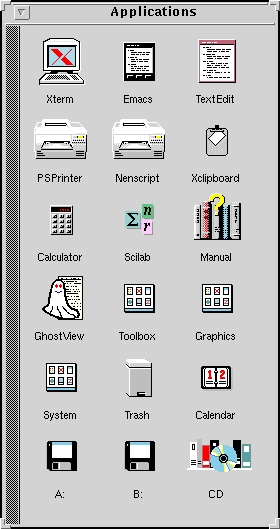
The Applications Manager that comes along with the File Manager window can be configured with the applications that you use frequently—and it's not just one windowfull, you change to different configurations by using the toolkit approach. More about this later.
Some of the icons in my Applications window (see Figure 2) do the following: Double clicking the Xterm icon brings up a color_xterm with a scroll bar and tcsh, while dragging an executable program from the File Manager window and dropping it on the Xterm icon executes that program. Every icon can have two actions—one for double clicking, one for drag and drop. Dropping files onto the trash can moves them to a directory called .trash for later disposal. Dropping PostScript files on the PSPrinter icon prints them out.
Type xfm.install (a program included with xfm) will add the directories .xfm and .trash in your root directory and place several configuration files in .xfm. You may then modify these files to optimize the program for yourself. These configuration files include xfmrc, a file that associates file types to icons and actions, and xfm-apps that lists the applications and icons that appear in the Application Manager and the associated double click and drag and drop actions. xfmdev is a listing of devices (disk drives/CD) and the mount and umount commands (see “Linux Tips”, Linux Journal, April 1995 page 41). Finally there is a file for each of the additional “tool boxes” that you wish to add.
The man page that comes with xfm is very well written and explicit on its use. Be sure to read it before doing any changes.
Many of the double-click/drag—drop operations are pre-configured in xfmrc based on the following format:
file_name:icon:push-action:drop-action
Xfm recognizes file names three ways: by the file name itself (e.g., core or Makefile), by its extension (*.c means c source files), or by its prefix (README*). The most common pattern used for the file_name is *.suffix, which, to have it recognize C files, is *.c, with the * permitting any file name ending in .c to be recognized. The push-action (activated by double clicking the icon) is what you most likely will change in the xfmrc file. For example, I changed the push-action on *.gif files to xv rather than xpaint. I also added:
*.au:xfm_au.xpm:cat $* >/dev/audio:
*.dat:xfm_data.xpm::
The first plays au files (audio files) when they are double clicked (read the Sound HOWTO, if you haven't configured sound), while the second merely associates the xfm_data icon to data files that I have created for executable programs.
Drop actions are those that occur when a file is dragged onto the icon. I don't have any drop actions defined for my File Manager window.
The programs and icons that constitute the Applications manager are dictated by the xfm-apps file. The entries in that file have a somewhat different form:
name:directory:filename:icon:push-action:drop-action
name is the title that appears in the Applications window, icon is the name of the icon to use, push-action is what to do when the icon is double-clicked, and drop is what happens when a file is dropped on the icon. A simple example is
PSPrinter:::printer.xpm::exec lpr $*
Double clicking this printer icon does nothing, while dropping a PostScript file on it from the file manager window results in the file being printed. The remaining entries in this file look like:
Xterm:::xterm.xpm:exec color_xterm -sl 600 -sb -fn
*     7x14 -j -ls -e tcsh:$*
Xclipboard:::clipboard.xbm:exec xclipboard:
Scilab:::math4.xpm:exec scilab:
Graphics::.xfm/xfm-graphics:xfm_appmgr.xpm:LOAD:
System::.xfm/xfm-system:xfm_apps.xpm:LOAD:
Calendar:::calendar.xpm:exec xcalendar:
CD:/cdrom::cdrom.xpm:OPEN: (*This line should not be broken)
Toolbox, Graphics and System are icons that change the Applications window to another containing a different set of application icons. For example, I made a simple graphics tool box with the following entry in xfm-apps:
Graphics::.xfm/xfm-graphics:xfm_apps.xpm:LOAD:
The LOAD command loads the .xfm/xfm-graphics file below:
Apps::.xfm/xfm-apps:xfm_apps.xpm:LOAD:
XFig:::draw.xpm:exec xfig: exec xfig -P -e ps -startf 16 $*
XPaint:::xpaint.xpm:exec xpaint:exec xpaint $*
XV:::xv.xpm:exec xv:exec xv $*
mpeg:::movie.xpm::exec mpeg_play -loop $*
The Apps line gets me back to the previous window: xfm-apps.
In the other applications file, System, I have in .xfm/system
Apps::.xfm/xfm-apps:xfm_apps.xpm:LOAD:
Xsysinfo::::xsysinfo:
TOP::::exec xterm -e top:
who:::view.xpm:exec who|xless:
lpq::::exec lpq |xless:
By piping the last two commands to xless, an xwindow is created that displays the results of the Unix commands.
Dialog boxes allow the input of command line parameters, such as:
LaTeX::::(latex %Latex_file\:%;beep):(latex $*;beep)
grep:::grep.xpm::grep '%Regular expression\:%' $*
The percent signs delimit the comment for the dialog box (with the \ escaping the :). The beep is to tell me when the operation is done; it is defined as echo -n '^G'.
If you prefer a different default editor than emacs, then you need to add an entry to the .Xdefaults file in your root directory. The xfm man page lists resources that you can change. I changed two by adding Xfm*defaultEditor: textedit and Xfm*updateInterval: 3000. (Be sure to run xrdb .Xdefaults to get the changes implemented if you want them before you next start X.) The update interval change was to refresh the directories more often than the default 10000 milliseconds. You can also change the default directory paths to the pixmap files; this may be important if your pixmaps are not in the default location (add Xfm*pixmapPath: your_path Alternatively, to make changes for all users, root can change options in the Xfm file in /usr/X386/lib/X11/app-defaults.
Xfm was created by Simon Marlow, who maintained it up to version 1.2. Albert Graef produced the present versions, fixing some bugs and adding the pixmaps. (He also graciously reviewed this article, improving it). As you read this, version 1.3.2 should be available, with such features as the recognition of “magic” file types in addition to those now specified in xfmrc, and better management of applications groups, such as installing applications groups within the applications manager, cut/copy/paste between applications files, and a view option for the File Manager (in addition to edit).
Robert Dalrymple (rad@coastal.udel.edu) works at the University of Delaware. He uses Linux both at home and work. www.coastal.udel.edu)