The LINCKS GPD
In Linux Journal Issue 11, we described a typical installation of LINCKS, described the functionality of its components, and briefly introduced the main application interface, xlincks. Since LINCKS is distributed with an online tutorial, and a 70-page xlincks manual, we will assume that you know the basics about operating xlincks. In this second and last part, we describe how to create your own views, or general presentation descriptors (GPD), as we call them. For a reference manual description of GPDs, see chapter 7 of the xlincks User's Manual, and for a technical overview description see Journal of Systems and Software.
As a running example, we will show you how to use xlincks to create an address book, and the GPDs used to enter and display data. We start out by designing our data structures, then describe the LINCKS object model, and finally show how the address book is represented in the object model. We briefly describe the automatic search for GPDs used in xlincks and show our first GPD, followed by a description of the GPD's parts. We conclude by extending the newly-created GPDs to demonstrate a few additional features.
In our address book, the two obvious objects are the person object containing personal information, such as: name, birth date, e-mail address, and private phone number, and the address object. An address object can be shared by different persons and contains the common street address and common phone number.
In LINCKS, each object consists of the following parts:
IMAGE storing any type of information which can be PostScript, object code, a GIF, or a name (string). The size must be less than 232-1 bytes and the content is single-valued. (Currently, xlincks can only handle IMAGEs containing zero-terminated strings.)
ATTRIBUTE describing or typing the object. The value of an attribute is a zero-terminated string shorter than 216-1 bytes. An attribute is named by two strings, a group tag and a field tag, where several attributes can share the same group tag, but the combination of group and field must be unique.
LINKS containing links to other objects. A link field is plural, that is, for each object it can contain several links to other objects, as opposed to the attributes, which are single-valued.
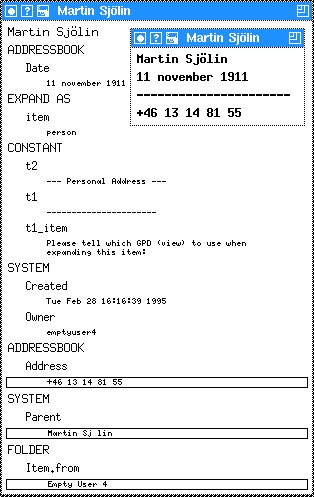
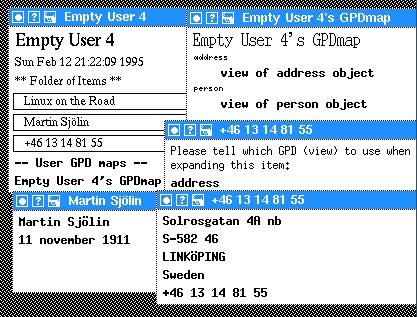
In Figure 1, the window with three entries is the person object where the image contains the person's name, the second line specifies the birth date, and the fourth line is a link to an address object. The second, bigger window is the node view applied to the same object. (To apply another view, click on the item, then on the “Expand...” menu item, and then choose the node view. See the previous article in Issue 11, or read the xlincks manual, for more information.) The first entry in the node view is the image, followed by all the attributes and finally the link section beginning with the SYSTEM:Parent entry.
Notice that the system creates the two attributes SYSTEM:Created and SYSTEM:Owner--this pair is a good example of two attributes sharing the same group tag. In general we use all capital letters for the group part and lower case letters, possibly initial capital letters, for the field part.
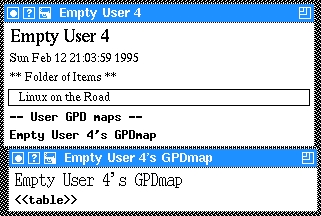
GPDs are named by a string, which may contain white space. xlincks looks for a specific GPD first in your own GPDmaps and then in the list of system GPDmaps. This allows you to override the system GPDs with your own specialized GPDs. Now, if you expand the Empty User 4's GPDmap line, you will get a window with your first GPDmap as in Figure 2.
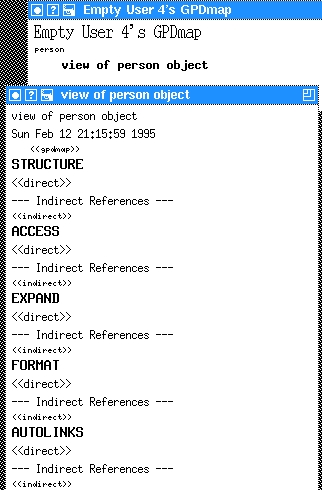
Replace the <<table>> with the name of the new GPD, person and then move out of the line with ctrl-n. A new placeholder <<gpd>> will appear which we fill in with a one line description of the new GPD, view of person object, as in Figure 3. Now, expand (meta-l meta-e) the description line to get the empty GPD template seen in the bottom of Figure 3.
First, you add a link from the GPDmap by first clicking on the line Empty User 4's GPDmap followed by a click on the line <<gpdmap>> in the empty GPD, then on the Add Link button—resulting in <<gdpmap>> being replaced with a link to Empty User 4's GPDmap.
Second, we need to define the logical structure by describing the logical parts in the person object. Earlier, we defined the person object to contain a name and birth date. Now, move to <<direct>> line in the STRUCTURE section and replace it with the name of our GPD, person. The name of the GPD used in GPDmap must occur at least once in the STRUCTURE part. After moving out of the line, we replace the newly created empty: value with the parts in our person object: name and “birth date”--since the part name includes a space we must use quotation marks (otherwise it would be three parts!).
Third, now that we've defined the structure of the person object, we need to define where to store the information. The ACCESS section of the GPD defines where we store or retrieve the parts of the logical structure. We would like to store the person's name in the IMAGE part and his/her birth date in an ATTRIBUTE called ADDRESSBOOK:Date.
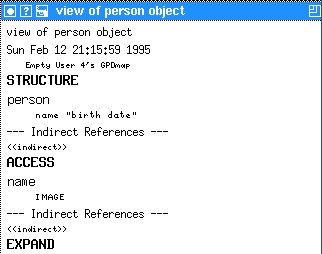
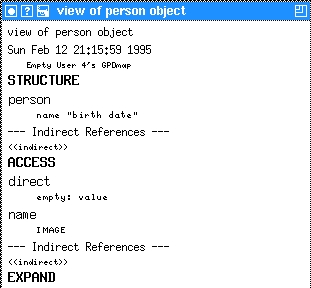
To specify the name component, we move to the <<direct>> in the ACCESS section and replace it with the name (the name of structure part). Then we move out of the line and replace the empty: value with IMAGE. The resulting GPD can be seen in Figure 4. A warning: any omitted ACCESS specification defaults to IMAGE!
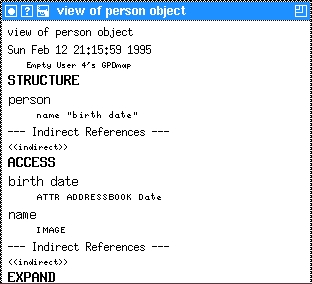
To define where we find the “birth date” in the ACCESS part we move the cursor to the name line in the ACCESS section and do an insert closest plural (meta-l meta-i), with the result as shown in Figure 5. Replacing the direct line with birth date (without quotation marks!) and the empty: value line with ATTR ADDRESSBOOK Date gives us Figure 6. Notice that we use the keyword ATTR followed by the group tag (ADDRESSBOOK) and the field tag to define the storage place for birth date in an attribute.
Last, if we would like to try our new GPD, we need to create a place to store the object, say in our LINCKS home directory:
1) Click on the line “Linux on the Road”
2) Do an insert closest plural (meta-l meta-i)
3) Expand the item (using meta-l meta-e or ctrl-left-click)
4) Fill in the GPD as person
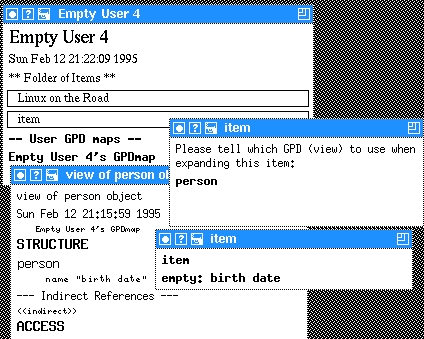
5) Expand the same line (person) which should result in a two-line window saying item and empty: birth date as seen in Figure 7.
We will not cover the creation of the address GPD in that much detail, but the basic steps are:
1) Select the GPDmap (use the same that we used for the person GPD)
2) Move to the person line. and do an insert plural.
3) Name the GPD address and give it the descriptive line view of address object.
4) Expand on the view of address object.
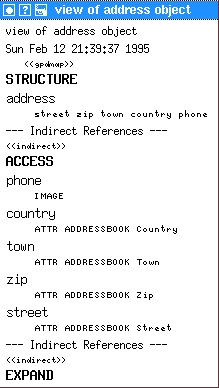
5) And complete it according to Figure 8.
Now, we need to create an address object and we follow the same steps as for the initial person object. We add the object to our home directory with the result as in Figure 9.
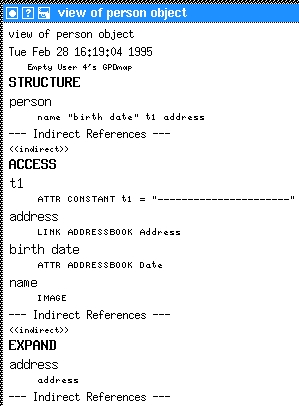
We have now defined templates for storing and retrieving address and person objects, but we need to connect one person to one or more specific addresses. We would like to link one person object to one or more address objects under the link name of ADDRESSBOOK Address (group and field tag). We will modify the person object to include a link to an address object. First, we need to add a new entity to the logical structure. Let us call it address. Second, we need to specify where to find the new part, extending the person GPD as in Figure 10.
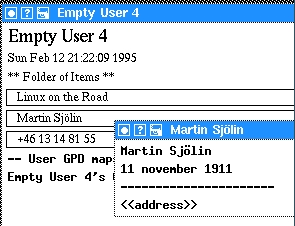
Notice that we have introduced the ATTR CONSTANT which defines a constant attribute, in this case a sequence of dashes. Moreover, in the GPD's EXPAND section we have defined that any expansion of the logical part address (which is found by following the link ADDRESSBOOK:Address) should be viewed using the address GPD. After storing the changed person GPD, we expand again the Martin Sjölin entry in our home directory and we see the added dashes as well as the placeholder <<address>> (Figure 11).
Adding a link to address +46 13 148155 to the placeholder and after expanding that phone number, we get Figure 12.
To make the person GPD look more like the standard folder or our home directory, we can put a border around the address entry (for example, the phone number) and push the left margin 10 pixels to the right by adding an entry to the FORMAT section under the logical part address as:
address
   borderWidth=1;leftMargin=10;width=400
where we use width to specify the widget's width in pixels.
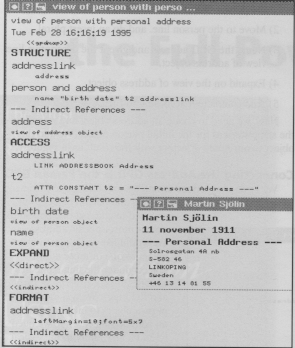
The last example shows how to create a combined person and address GPD, let us call it the person and address GPD. As before, select the GPDmap, add a new GPD, name it person and address with a one line description, as seen in Figure 13. This GPD contains several noteworthy features. First, we use the font specification in the FORMAT section. Any valid X11 font in our system can be specified after the equal sign. Sometimes quotation marks (“) are needed around the font name. Also, the font and marginal specification is valid for all entries which follow below (in logical structure), as seen in Figure 13. We have applied the person and address view on the person object Martin Sjölin in the home directory.
Second, in the ACCESS section, --- Indirect References --- we have re-used the ACCESS specification in the person GPD by using the same logical name on the same logical part in the address GPD and then adding a link to the person GPD. The system follows the link to the other GPD and looks for the ACCESS specification under the name name and birth date. Thus, we only have the ACCESS specification in one GPD instead of copied into several GPDs (we avoid magic numbers!).
Third, what about the addresslink structure part? We have defined addresslink to point to the address object in the ACCESS section which results in an address object. Then, in the STRUCTURE section, we have used the indirect feature and re-used the address GPD (as seen by the descriptive name on the line below address).
Now, if we use the --- Indirect References --- in ACCESS, EXPAND, or FORMAT sections, we are only re-using the declaration for that specific logical part, that is, we are using that ACCESS, EXPAND or FORMAT declaration in the other GPD. But, when using the indirection in the STRUCTURE part, we use the STRUCTURE, ACCESS, EXPAND and FORMAT declarations in the GPD that is pointed to (in this case the address GPD) and no longer use any declarations in the GPD that is pointed from (the person and address).
For example, if we add a FORMAT specification for the address part in the person and address GPD, it will not be used since any FORMAT declaration must be included in the (address) GPD pointed to—try it out yourself. The mechanism is similar to a function call.
This introduction, along with the material in the xlincks manual, should help get you started. If not, you will have to bug the author enough to finish the real GPD tutorial, hopefully before the next public release of LINCKS (hopefully released by the time you read this).
Martin Sjölin is about to complete an MSc in computer science at the Department of Computer and Information Science, University of Linköping, Sweden. He is working in the fields of hypertext/hypermedia, document handling, CSCW, and information filtering/sharing. He is responsible for support and development of LINCKS, whenever he is not browsing the net (WWW, mailing lists, Usenet). Beside computers, he enjoys cooking, backpacking, skiing, wind surfing, canoeing, and reading, whenever he is not hacking on LINCKS or Linux for the MacIntosh. (marsj@ida.liu.se)